

BizConnext › AdsConnext › Features › Spend per client
Spend and results per client on one page
Link ad accounts to clients from your company’s client list, then see spend, impressions, clicks and results per client — with media cost typed in from other channels.
- Company client list
- Typed-in media cost
- Client groups
- Compare periods
Sound familiar?
- Month-end spend per client in Excel
- Clients with many branches and accounts
- Other channels’ media cost in separate files
Every account’s numbers add up per client, branches can be grouped, and typed-in media cost sits in the same report.
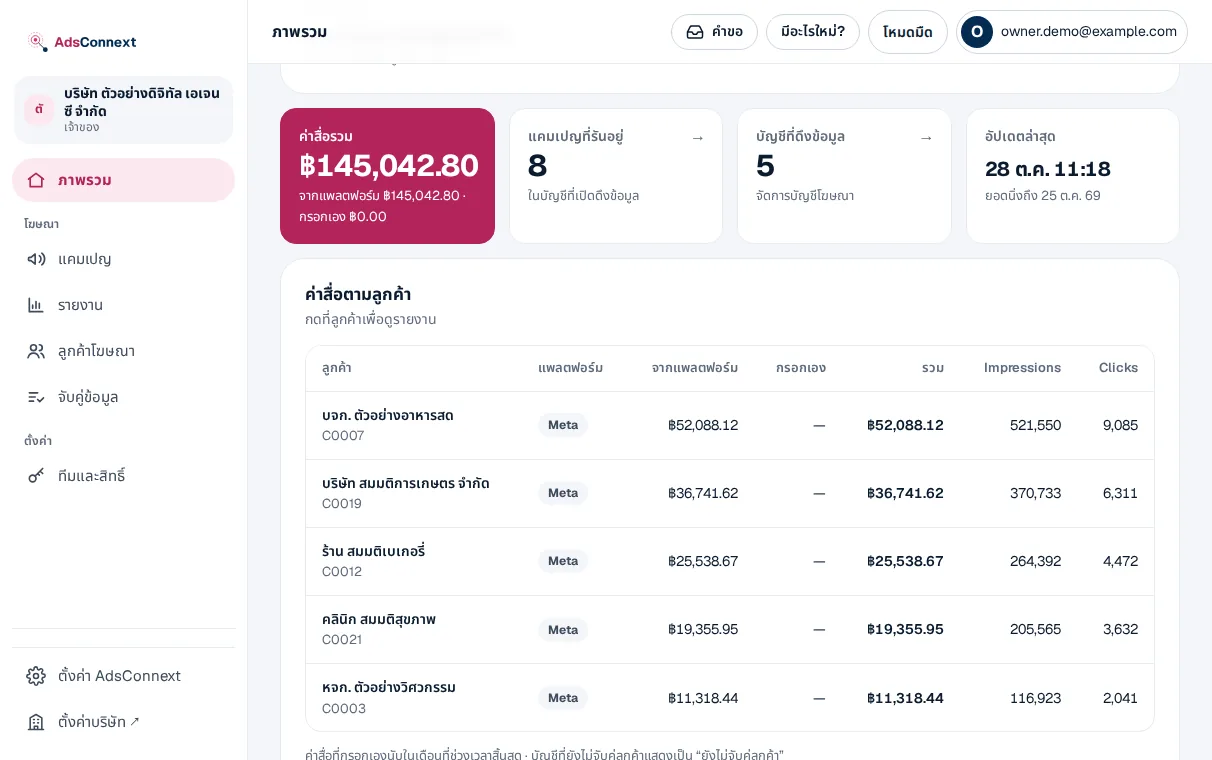
Each client
Spend, results and campaigns per client for the dates you choose, compared with the period before.
- The same client list as your BizConnext account
- Group clients, e.g. head office and branches
- Add new clients at the account
How it works
- 1Link accounts to clientsPick from your company’s client list
- 2Add other media costFor ads outside Meta, type the cost per client
- 3Open the reportBy client or by campaign, for any dates
Questions
Where does the client list come from?
Your company’s client list in your BizConnext account — the same list 360Connext uses. Add clients at account › Customers.
Can one account serve several clients?
Yes — put a CAMCODE in the campaign name and the numbers split by client per campaign.
Do I need 360Connext?
No. With it, the client list is shared and you get the bundle discount.
More in AdsConnext
Get the whole company started today
Sign up with your e-mail, add employees and send everyone the LINE link. Our team helps you set up for free.
Start your 14-day free trial Talk to us
@bizconnext →